How to get notified via email on PDF form submissions
You have turned your PDF into an online form and you're now getting submissions from your customers.
Everything is great except that you have to log into your SimplePDF portal everyday to see whether or not there's a new submission.
What if you could just get an email that a form has been submitted?
Read on to enable email notifications for your PDF forms!
Configuring the email notifications
Configuring email notifications is available with the BASIC plan. Email deliveries are unlimited and do not count toward your monthly plan quota; only documents and submissions do.
- Log in to your account
- Navigate to the documents view
- Locate the form for which you want to configure email notifications
- Open the form settings by clicking the
cogicon. You can reach it in two ways:
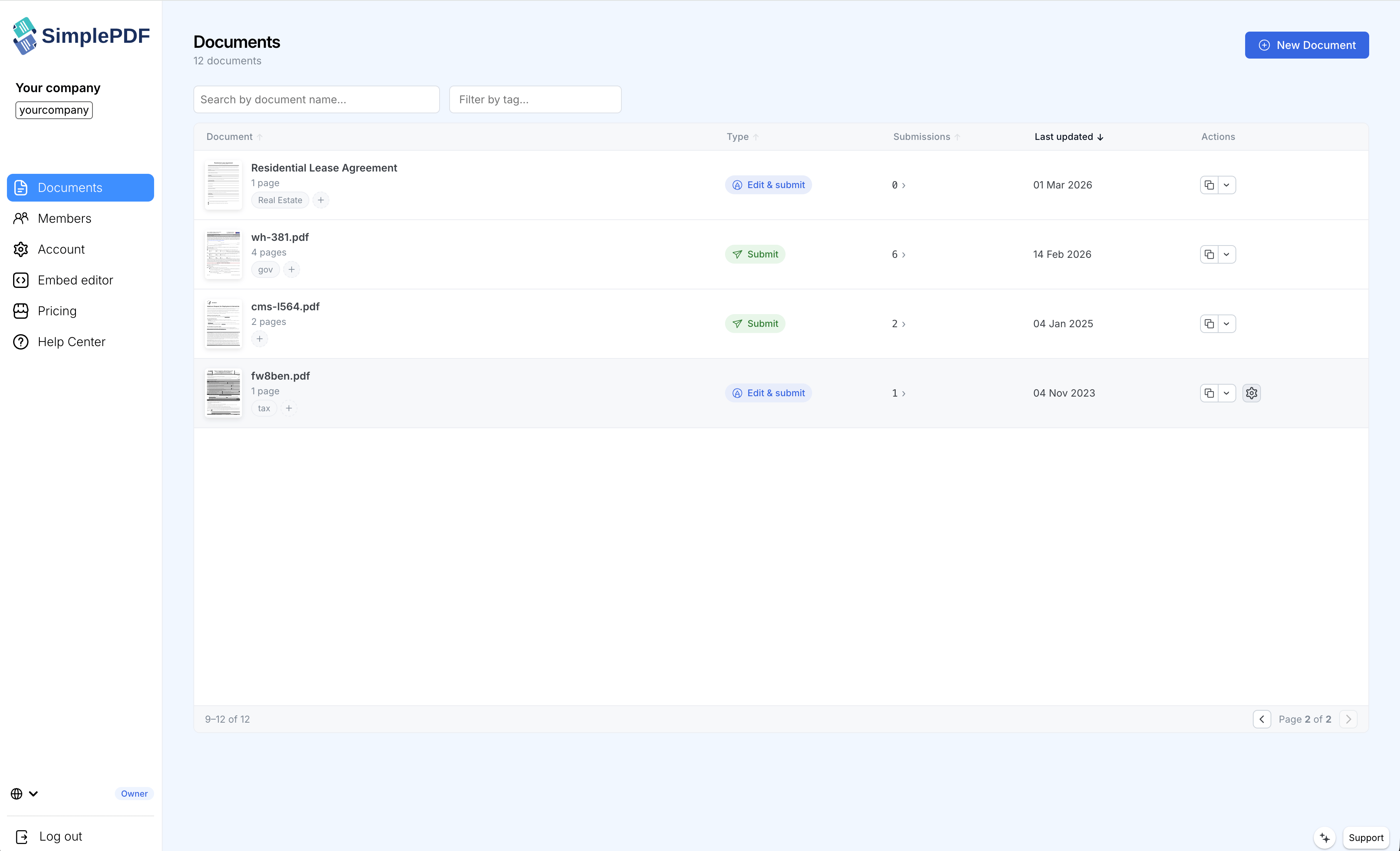
From the documents list, the cog appears on the form's row:
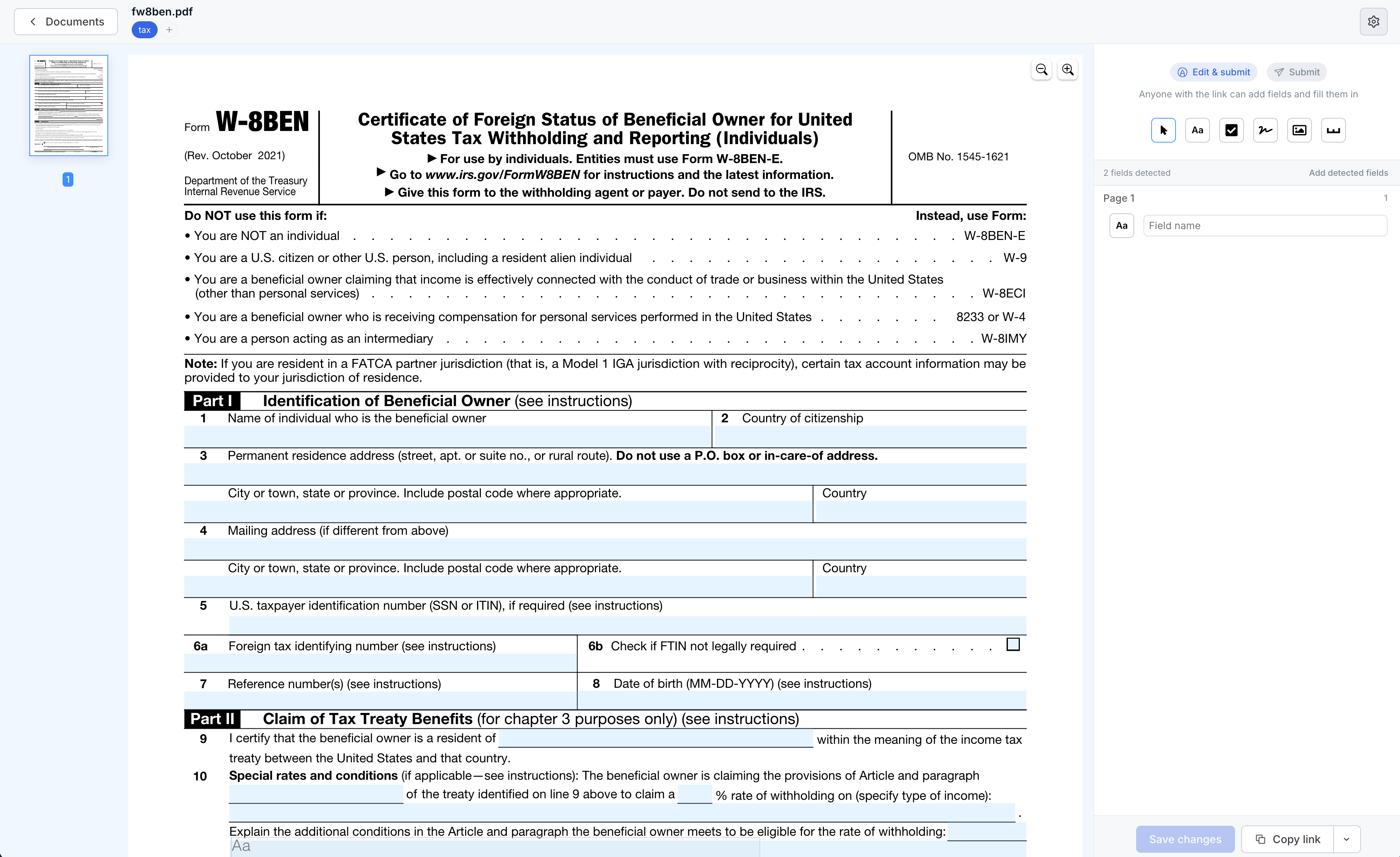
Or from inside the editor, in the top-right corner of the page:
- Under Email notifications, type the name of the person to receive the emails or select them from the dropdown. You can add multiple recipients.
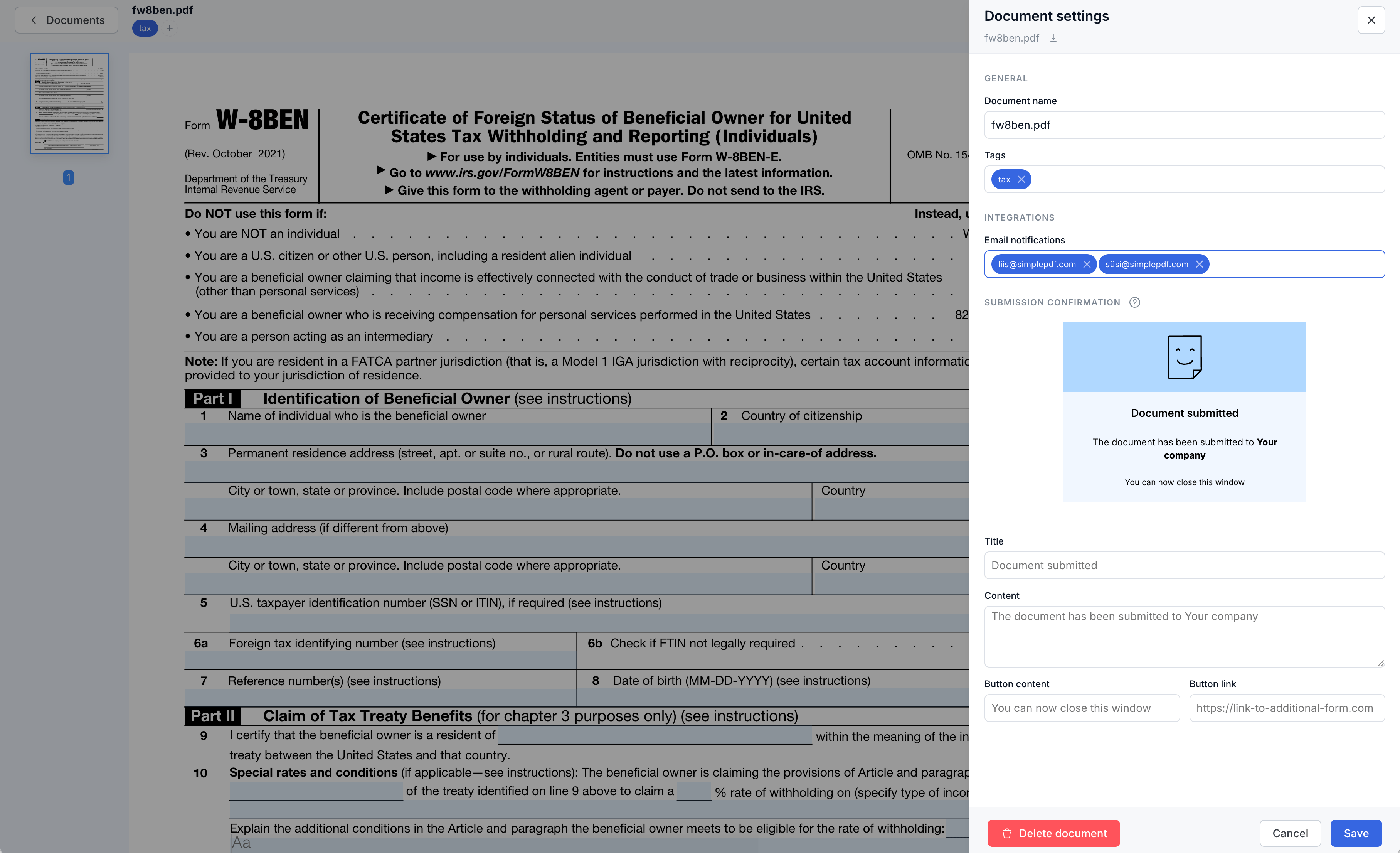
- Click Save
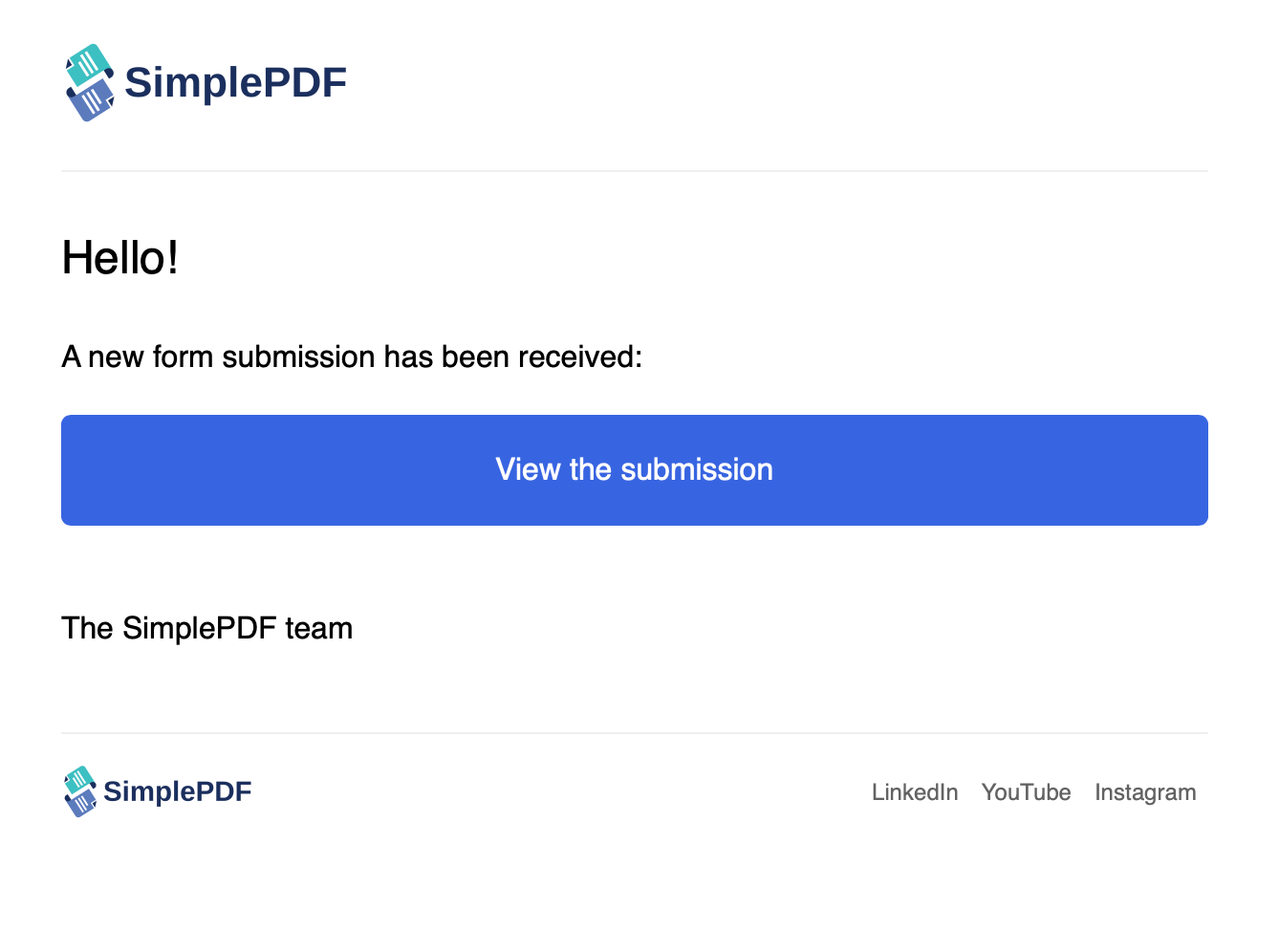
- Some time elapses... and the form is submitted: you get a new email with a direct link to the submission!
I don't see a specific email in the list, how can I add it?
The notifications can be sent to any member of your SimplePDF account: simply send an invitation to the email and accept the invitation upon receiving it in your mail box.
The newly added email will now be selectable in the email configuration dropdown.
That's it! You're now getting email notifications every time a PDF form is submitted!
If you have any questions, feel free to reach out to support@simplepdf.com